Integrations/Cust MCP server

Cust MCP server

AI apps Use Cust from your connected AI app.

Connect an external AI app that supports remote MCP servers with OAuth to your Cust workspace. Retrieve customer context and use available Cust tools from that app, including tools that change workspace data.

Your workspace must include Cust MCP, and an Admin or Owner must allow AI app access. Each connection acts as the member who authorized it, in the workspace they selected.

Read the Cust MCP server setup guide.

For services that your Cust Assistant calls, see Assistant connectors. The Cust MCP server brings Cust tools into an external AI app.
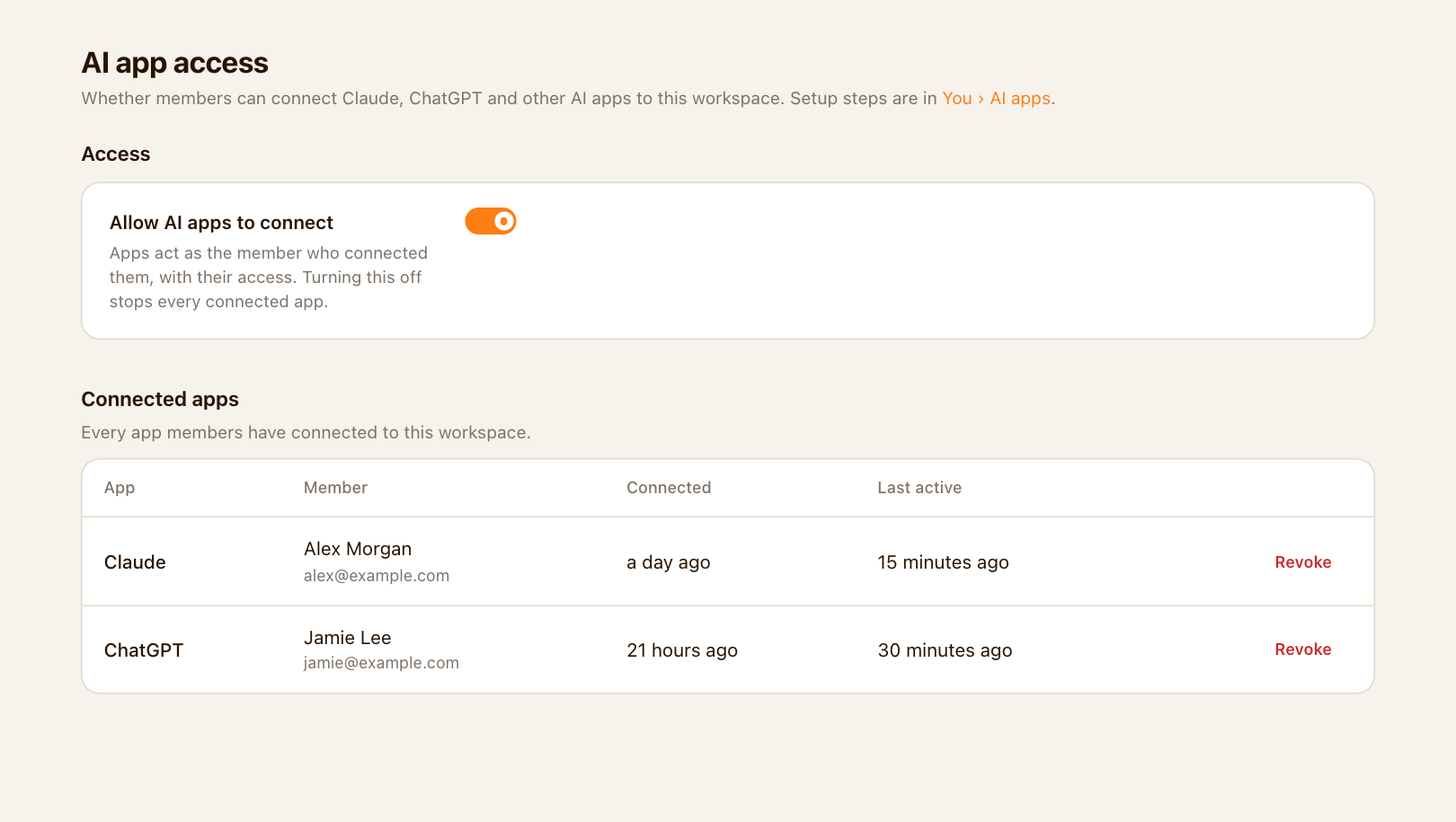
AI app access settings with the workspace access switch and member connections
Allow AI apps to connect and review member connections in workspace settings. Click the image to open it full size.

What you get

Customer context

Retrieve company context and action items through available Cust tools. Returned record references link back to Cust.

Your permissions

Available tools follow your user access and the workspace’s enabled capabilities. Review requests in the external AI app, where tool approvals are handled.

Connection controls

Review or revoke your connections in Settings → You → AI apps. Administrators can manage workspace connections or turn off AI app access for everyone.

How it works

1

Enable workspace access

An Admin or Owner turns on Allow AI apps to connect in Settings → Workspace → AI app access. The change saves automatically.

2

Connect your AI app

Open Settings → You → AI apps for setup instructions and your region’s MCP endpoint. Add it in your AI app and sign in to Cust to authorize the connection.

3

Use Cust with context

Choose the workspace and allow the connection. Ask a focused question, such as a summary of open customer action items. Review tool permissions before allowing changes.

Ready to connect Cust MCP server?

Bring customer context into your AI app.

Book a Demo